👤 By Aqsa Ahsan
Expert Advisors (EA)
Why a VPS is Important for EA Trading and How to Set It Up on MetaTrader 5
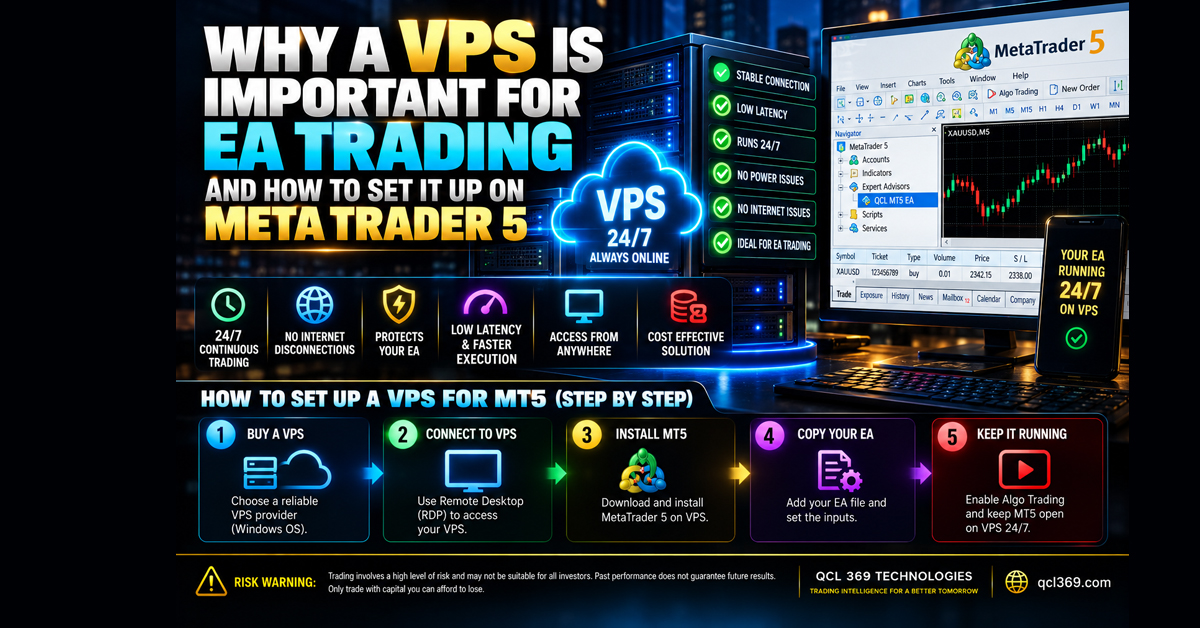
Why a VPS is Important for EA Trading and How to Set It Up on MetaTrader 5
EAs make trading automatic, but they need a reliable system to run properly. Running an EA like QCL MT5 on your home computer can be affected by power cuts, internet problems and automatic restarts.
A Virtual Private Server VPS gives your EA a reliable system that runs 24/7 helping keep your automated trading online.
Part 1: Why a VPS is Crucial for EA Trading
A VPS is a fast remote computer that runs 24/7. Running an automated system on a VPS provides key operational advantages:
-
24/5 Uninterrupted Uptime: If your computer sleeps, loses power, or restarts your EA stops working. Open positions are left without trailing stops and good trade opportunities can be missed. A VPS runs continuously throughout the market week.
-
Low Latency & Reduced Slippage: Home internet can have delays of 50 to 150 ms when connecting to broker servers. VPS servers near major financial centers can reduce trading delays to just 1–5 ms. This near instant speed prevents slippage when trading fast moving assets like Gold XAUUSD.
-
Dedicated Resources: Home computers can slow down because of browsers, updates, or antivirus scans. A VPS gives MT5 dedicated CPU and RAM for smooth performance.
Part 2: Minimum Hardware Requirements for MT5
MetaTrader 5 is a modern 64 bit multi asset platform. Although the EA is lightweight complex algorithms live dashboards and multiple trades need enough system resources to run smoothly.
==============================Performance Note: For the QCL MT5 EA we recommend at least 2 CPU cores and 4GB RAM. Avoid unnecessary apps on the VPS so MT5 has enough resources to run smoothly.
Part 3: MT5 Built In VPS vs. Third Party
Traders generally choose between two VPS hosting models:
Option A: Native MetaTrader 5 Virtual Hosting (Built In)
MetaQuotes provides cloud virtual hosting directly within the MT5 desktop platform.
-
How It Works: In MT5 right click your account in the Navigator and select Register a Virtual Server.
-
Pros: Setup takes just two clicks. No separate Windows login is needed. Your charts EAs and indicators are automatically synced to a cloud server near your broker.
-
Cons: You won’t have a Windows desktop to watch your charts live. It also works with only one MT5 account so it’s less flexible for managing multiple accounts.
Option B: Dedicated Third Party Forex VPS
Third party providers offer a full remote Windows desktop that you can access from anywhere using Remote Desktop Protocol (RDP).
-
How It Works: You get an IP address username and password to access your remote desktop from a PC, Mac, iPhone, or Android device.
-
Pros: Full visual control: Watch your EA trade live install custom settings check logs and run multiple MT5 terminals on one VPS.
-
Cons: Requires a few minutes of manual setup (downloading your broker’s MT5 software and logging in).
Part 4: Step by Step Setup Guide for a Windows VPS
Setting up a Windows VPS for your MT5 EA involves a few easy steps:
Step 1: Connect via Remote Desktop (RDP)
-
On your Windows PC press the Windows Key type Remote Desktop Connection and open the app. (Mac, iOS, and Android users can download the free Microsoft Remote Desktop app from their respective app stores).
-
Enter the IP Address provided by your VPS host.
-
Click Connect then enter the Username usually
Administratorand the Password sent in your hosting welcome email. -
Accept the security certificate prompt. Your remote Windows desktop will appear on your screen.
Step 2: Install MetaTrader 5
-
Open the web browser inside your VPS remote desktop.
- Go to your broker’s official website such as Exness and download the official MT5 desktop installer.
-
Run the installer and complete standard installation.
Step 3: Load Your Expert Advisor and Setfiles
-
Open MT5 on your VPS and log in to your live or prop firm trading account.
-
In MT5 click File > Open Data Folder.
-
Open the MQL5 > Experts folder and paste your EA file e.g
QCL_MT5_EA.ex5. -
(Optional) Open the MQL5 > Profiles > Presets folder and paste your calibrated
setfiles. - Restart MT5 or right click Expert Advisors in the Navigator and select Refresh.
Step 4: Configure Execution Permissions
-
Make sure Algo Trading is ON (green) at the top of MT5.
-
Go to Tools > Options > Expert Advisors.
-
Check the box labeled Allow Algo Trading.
- Open your chart drag the EA onto it load your account’s setfile then click OK.
- Check the EA dashboard to make sure it shows Active Monitoring on the chart.
Once everything is set up just close the Remote Desktop window. Your VPS will keep MT5 running and execute trades 24/5 in the background.
Related Reading
Tags: 24/7 Trading Algorithmic Trading automated trading Cloud Trading Crypto Trading Bot EA Hosting Expert Advisor Setup Forex Automation Forex EA Forex Tools Forex VPS Gold Trading Bot Low Slippage Trading MetaTrader 5 MT5 Setup Guide MT5 VPS Trade Execution Trading Latency VPS Hosting XAUUSD Trading